
RESOLUME PLUGIN / Automation
Camera BlackGuard
Monitors a camera signal and advances the layer to the next clip if the image stays black.
macOS / Windows
Download plugin
macOS ↓ 0.2 MBWindows ↓ 0.5 MBZIP archive containing the build for your platform and the available supporting materials.
User guide
Camera BlackGuard 1.0
An FFGL effect for Resolume Arena/Avenue 7 on macOS. It passes video through unchanged, monitors frame brightness and, when the signal remains black, sends a single OSC command to Resolume to advance the selected layer to the next clip.
Installation
1. Close Resolume.
2. Copy CameraBlackGuard.bundle to Documents/Resolume Arena/Extra Effects (or the FFGL directory set in Resolume → Preferences → Video).
3. Start Resolume. The effect appears under Effects as Camera BlackGuard.
4. Enable OSC Input in Resolume and set the input port to 7000.
5. Drag the effect onto your camera capture clip.
Parameters
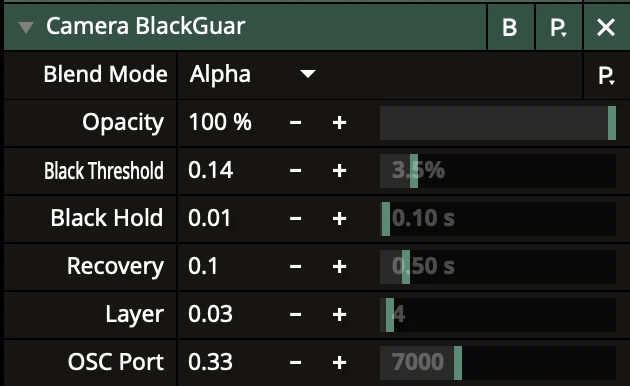
- Black Threshold — the maximum brightness considered black. Default: 3.5%. Range: 0–25%.
- Black Hold — how long the signal must remain black before switching. Default: 1 second. Range: 0–10 seconds.
- Recovery — how long a normal image must be present before another trigger is allowed. Default: 0.5 seconds. Range: 0–5 seconds.
- Layer — the layer on which to launch the next clip. Default: 1. Range: 1–99.
- OSC Port — Resolume's incoming OSC port. Default: 7000. Range: 6000–9000.
Behaviour and testing
The OSC command is sent only to 127.0.0.1 at /composition/layers/N/connectnextclip. A continuous black signal triggers just one switch. The plugin rearms after a normal image has been present for the Recovery duration.
Before a show, test the threshold with your actual camera: a very dark scene may also be treated as signal loss. Make sure a backup clip follows the camera clip on the selected layer and that Beat Snap does not introduce an unwanted delay.
Mikhail Kuprygin.